- ✗ AIP1 Isambard-AI Phase 1 unsupported
- ✓ AIP2 Isambard-AI Phase 2 supported
- ✗ I3 Isambard 3 unsupported
- ✗ BC5 BlueCrystal 5 unsupported
Distributed vLLM Inference
Abstract
This tutorial aims to introduce serving a large language model (LLM) across multiple GPUs and multiple nodes on Isambard-AI. It provides a reference for serving such models using the vLLM and Ray frameworks.
Prerequisites
We welcome people from all domain backgrounds that have experience serving AI models with vLLM. High Performance Computing (Slurm) knowledge is not required.
Learning Objectives
The learning objectives of this tutorial are as follows:
- Be able to serve a large language model using vLLM and Ray on Slurm.
- Understand how tensor, data, and pipeline parallelism work and why they are important to consider when serving LLMs.
- Understand how to make use of the high-speed network (Slingshot) and NCCL when serving an LLM across multiple nodes, and why this is important.
- Run a benchmark on GPT-OSS-120B to assess model throughput (tokens per second).
Tutorial Contents
Tutorial
1. Introduction and Setup
Inference is the process of obtaining a prediction from an AI or ML model. Model serving is the mechanism for providing an accessible interface to a model for this purpose. Due to LLM scaling laws, such models have continued to grow in size considerably. In the 2010s, the majority of state-of-the-art AI/ML models could be trained and served on a single commercial, off-the-shelf GPU due to their small size. Deep neural networks at this time were typically under 100 million parameters. Today's frontier LLMs, such as Claude Sonnet/Opus 4.6, Gemini 3.0, GPT5.2, Mistral-Large-3, and DeepSeek-v3.2, are significantly larger in size. These models are pushing towards and above 1 trillion parameters and have weights nearing 1TB. As a result, training of these models is limited to the most powerful datacenter-grade GPUs, such as the Hopper GPUs in our GH200 superchips; with many of them being needed simultaneously. This problem extends to inference also, where these models need to be served on multiple GPUs and multiple nodes, as it is not possible to load them, without quantization, on a single GPU.
This tutorial shows how the OpenAI GPT-OSS-120B model, with weights of ~70GB, can be served on a single node across multiple GPUs as well as across multiple nodes. Please note that this particular model can run on a single Hopper GPU, but for tutorial purposes we will assume it cannot.
Parallelism strategies
The majority of LLMs produced by frontier AI labs today need to be run in distributed environments due to their size. The mechanism for utilising multiple hosts to accelerate the training and inference of an LLM is called parallelism. The most common four strategies are:
- Tensor Parallelism (TP) - weights within each model layer are split across devices (GPUs/TPUs), such that each device only holds a subset of any given layer; this is the most common strategy for serving LLMs.
- Pipeline Parallelism (PP) - different layers are assigned to different devices; data traverses through each device in the appropriate order to produce the model output.
- Data Parallelism (DP) - each device holds a copy of the model but process distinct batches of data; most commonly used during the training of smaller models (that fit on a single GPU).
- Expert Parallelism (EP) - each device holds one (or several) experts from a mixture-of-experts (MoE) model; input data can be routed to the most appropriate 'expert'.
 Reference: HuggingFace
In this tutorial, we will be using tensor and pipeline parallelism.
Understanding the frameworks
In order to facilitate distributed model serving, we will be using vLLM with a Ray backend. vLLM is an inference engine that serves an OpenAI compatible API. The vLLM engine serves an endpoint that other services can connect to for LLM testing, benchmarking, or post-training. Ray is a framework for scaling AI/ML applications. In our case, Ray will run on each node in our model serving cluster and it will handle all of the inter-node communication on behalf of vLLM.
If you wish to use this tutorial to run a different model, you must adjust the YAML_CONFIG and parallelism arguments accordingly. Be aware that vLLM is very feature dense and has a fast biweekly release cycle. As new models are released frequently, and vLLM is updated nightly, you may need to use the 'nightly' version of vLLM. Please check the vLLM documentation and GitHub repository to find the required vLLM version for the model you are testing.
Setting up the environment
Install uv, create an environment, and install vLLM with Ray:
$ module load cudatoolkit
$ curl -LsSf https://astral.sh/uv/install.sh | sh
$ mkdir vllm_tutorial
$ cd vllm_tutorial/
$ uv venv --seed --python=3.12
$ srun --gpus=1 --pty bash -c "
    source .venv/bin/activate
    uv pip install -U vllm[flashinfer]==0.15.1 ray[default] \
        --torch-backend=auto \
        --extra-index-url https://wheels.vllm.ai/0.15.1/vllm
    vllm --version
"
0.15.1
Using srun to install vLLM
Here we are using srun to install vLLM, Ray and PyTorch through uv.
This is to ensure that we install CUDA-enabled versions of these packages.
Installing ML Applications
More information on ML applications and frameworks is available in the ML Applications Documentation
2. Single-node serving
In this section, we will serve the model across multiple GPUs on one node and run a benchmark on a separate node. As a reminder, one node on Isambard-AI contains four GH200 superchips so has four Hopper GPUs.
This is a simpler process compared to multi-node serving, which we will go on to, as we can run vllm serve directly within our Slurm job script.
Configuring vLLM for GPT-OSS-120B
The vLLM library provides support for a plethora of different LLMs. As a result of the variety of model architectures and number of model parameters, vLLM provides many different configuration options to allow users to optimally serve all LLMs. Below, we can see the vLLM configuration that we will be using to serve GPT-OSS-120B on our Hopper GPUs; adapted from the recipe provided by vLLM. This file is already stored in the /projects/public/brics/distributed_vllm/ folder and is used by the serving scripts automatically.
no-enable-prefix-caching: true
max-cudagraph-capture-size: 2048
max-num-batched-tokens: 8192
stream-interval: 20
These options provide the following benefits:
- Disabling prefix caching reduces instability and memory fragmentation.
- The CUDA graph capture size limit prevents out of memory errors on the Hopper GPUs.
- Limiting the maximum number of tokens processed per batch balances throughput with KV cache size.
- Setting the stream interval to 20 reduces overheads caused by frequently streaming tokens back to the client from the vLLM server.
- Setting the maximum number of sequences to 512 allows for high throughput and limits the KV cache size.
Where can I find the weights?
The GPT-OSS-120B weights have been pre-downloaded by BriCS and can be found in the /projects/public/brics/hf folder.
In addition to this, the Tiktoken embeddings required to serve GPT-OSS-120B can be found in the /projects/public/brics/distributed_vllm/etc/embeddings folder.
The scripts provided in this tutorial load model weights and embeddings directly from these folders.
Starting a server on one node
In order to start a vLLM server on one node, we will use the vllm serve command. As we are dealing with one node with multiple GPUs, vLLM is able to handle model serving without a separate distributed executor backend such as Ray. To start our vLLM server on an Isambard-AI node, we can run the Slurm script below with sbatch.
This script does several things before running the vllm serve command. First, it activates the uv virtual environment where we installed vLLM, before setting environment variables, including the path of the model weights on Isambard-AI and the vLLM model config. Before running vllm serve on our compute node, the brics/nccl module is loaded to ensure that GPU-to-GPU communication via NCCL on the Slingshot HSN. We then use srun to start our vLLM server on a compute node.
#!/bin/bash
#SBATCH --job-name=vllm-serve
#SBATCH --nodes=1
#SBATCH --gpus=4
#SBATCH --time=4:00:00
#SBATCH --exclusive
#SBATCH --output=out/%x.%j.out

source .venv/bin/activate

export HF_HOME=/projects/public/brics/hf
export MODEL_PATH=$HF_HOME/hub/models--openai--gpt-oss-120b/snapshots/b5c939de8f754692c1647ca79fbf85e8c1e70f8a/
export MODEL_NAME="openai/gpt-oss-120b"
export YAML_CONFIG="/projects/public/brics/distributed_vllm/GPT-OSS_Hopper.yaml"
# Fix issue https://github.com/vllm-project/vllm/issues/22525#issuecomment-3172271363
export TIKTOKEN_ENCODINGS_BASE="/projects/public/brics/distributed_vllm/etc/encodings"
export TENSOR_PARALLELISM_SIZE=4
export SERVER_ADDRESS=$(dig +short ${HOSTNAME}-hsn0)
echo SERVING ON $HOSTNAME with TENSOR_PARALLELISM_SIZE=$TENSOR_PARALLELISM_SIZE

module load brics/nccl
module list

export CC=gcc
export CXX=g++

srun \
    --nodes=$SLURM_NNODES \
    --gpus=$SLURM_GPUS \
    --cpus-per-task 72 \
    --ntasks-per-node 1 \
    vllm serve $MODEL_PATH \
    --served-model-name $MODEL_NAME \
    --config $YAML_CONFIG \
    --host 0.0.0.0 \
    --port 8000 \
    --max-num-seqs 512 \
    --tensor_parallel_size=$TENSOR_PARALLELISM_SIZE
Click here to download the file: single_node_serve.sh
$ sbatch single_node_serve.sh
Submitted batch job JOB_ID
The logs for this job can be found in out/vllm-serve.JOB_ID.out, within the directory you ran the sbatch single_node_serve.sh command.
In this file, you will see the logs produced by vLLM while the server is starting. The vLLM server is ready when you the Application startup complete log message appears, as seen below.
[1;36m(APIServer pid=249008)[0;0m INFO: Started server process [249008]
[1;36m(APIServer pid=249008)[0;0m INFO: Waiting for application startup.
[1;36m(APIServer pid=249008)[0;0m INFO: Application startup complete.
Benchmarking a single node server
#!/bin/bash
#SBATCH --job-name=vllm-bench
#SBATCH --nodes=1
#SBATCH --gpus=1
#SBATCH --time=01:00:00
#SBATCH --exclusive
#SBATCH --output=out/%x.%j.out

source .venv/bin/activate
export SERVER_ADDRESS=nid001014
export MODEL_NAME="openai/gpt-oss-120b"
export SERVER_ADDRESS=$(dig +short ${SERVER_ADDRESS})
echo BENCHMARKING ON $HOSTNAME AGAINST SERVER AT $SERVER_ADDRESS

srun \
    --nodes=$SLURM_NNODES \
    --gpus=$SLURM_GPUS \
    --cpus-per-task 72 \
    --ntasks-per-node 1 \
    vllm bench serve \
    --model $MODEL_NAME \
    --host $SERVER_ADDRESS \
    --port 8000 \
    --trust-remote-code \
    --dataset-name random \
    --random-input-len 1024 \
    --random-output-len 1024 \
    --ignore-eos \
    --max-concurrency 512 \
    --num-prompts 2560
Click here to download the file: vllm_bench.sh
After our vLLM single node server is ready, we can test its performance by running a benchmark.
This script runs the vLLM benchmark on the 'random' dataset, a synthetic text-only dataset for throughput benchmarks. We are running the vllm bench serve command on a second Isambard-AI node but connecting to the vLLM server hosting the GPT-OSS-120B model that we launched in the first job. The script tells vLLM to connect to the vLLM server running on the IP address of the node running our single node vLLM server on port 8000. The additional arguments do the following:
random-input-lensets the input prompt length to a fixed number of tokens.random-output-lenrestricts each model output to a fixed number of tokens.ignore-eosensures the model always outputsrandom-output-lentokens, even if an EOS token is produced.max-concurrencysets the number of simultaneous requests to be processed.num-promptsspecifies the total number of prompts run during the benchmark.
Before we begin running our benchmark, we need to find the node that is running our vLLM server. To do this, we can run squeue and find the only node specified in the nodelist for our vllm-serve job.
$ squeue --me
  JOBID         USER PARTITION                     NAME ST TIME_LIMIT       TIME  TIME_LEFT NODES NODELIST(REASON)
2457054 user.project     workq               vllm-serve  R    4:00:00       6:05    3:53:55     1 nid011125
In the snippet above, this would be nid011125. Open the vllm_bench.sh file and set SERVER_ADDRESS to the hostname you see.
We are now ready to run the benchmark on our single node vLLM server.
$ sbatch vllm_bench.sh
The results of this benchmark are logged to the out/vllm-bench.JOB_ID.out file. It will take a few minutes before you begin seeing the results of the benchmark, but when it has concluded you should see results like this:
BENCHMARKING ON HOST_NAME AGAINST SERVER AT IP_ADDRESS
.
.
.
Starting initial single prompt test run...
Skipping endpoint ready check.
Starting main benchmark run...
Traffic request rate: inf
Burstiness factor: 1.0 (Poisson process)
Maximum request concurrency: 512
100%|██████████| 2560/2560 [02:26<00:00, 17.49it/s]
tip: install termplotlib and gnuplot to plot the metrics
============ Serving Benchmark Result ============
Successful requests:                     2560
Failed requests:                         0
Maximum request concurrency:             512
Benchmark duration (s):                  146.38
Total input tokens:                      2621440
Total generated tokens:                  2621440
Request throughput (req/s):              17.49
Output token throughput (tok/s):         17908.97
Peak output token throughput (tok/s):    24892.00
Peak concurrent requests:                609.00
Total token throughput (tok/s):          35817.93
---------------Time to First Token----------------
Mean TTFT (ms):                          1051.79
Median TTFT (ms):                        394.31
P99 TTFT (ms):                           6093.83
-----Time per Output Token (excl. 1st token)------
Mean TPOT (ms):                          27.49
Median TPOT (ms):                        27.23
P99 TPOT (ms):                           31.38
---------------Inter-token Latency----------------
Mean ITL (ms):                           27.49
Median ITL (ms):                         21.66
P99 ITL (ms):                            96.03
==================================================
Potential trip-ups
Setting of MODEL_PATH
When running distributed vLLM over multiple nodes, it is important to use the model path instead of the model name as seen in the multi_node_serve.sh script. It is important to note that MODEL_PATH must be a directory.
Server address in vllm_bench.sh
Ensure that the SERVER_ADDRESS environment variable matches the hostname of your job's node. This also applies for the multi-node case, where this should correspond to the head node of your Ray cluster.
Issues with CUDA
If you encounter CUDA-related errors, run uv pip list | grep torch in the virtual environment you created. If the environment was set up correctly, you should see a +cu129 suffix to the PyTorch version e.g. torch 2.9.1+cu129.
How do my results compare to your benchmark?
Compare the total token throughput (tok/s) and mean time to first token (TTFT) to our results above to verify that the vLLM server is behaving as expected.
3. Multi-node serving
In this section, we will serve our model across two nodes on Isambard-AI, or eight Hopper GPUs.
This requires an extra step compared to the single node setup, where we will start a Ray cluster across our nodes to act as the backend for vLLM.
Ray
Ray is an open-source framework designed to assist with scaling AI/ML and Python applications. It provides a distributed runtime and a simple API to enable workloads to be accelerated across compute clusters. It is composed of several different components, ranging from Ray Tune for hyperparameter tuning to Ray Data for distributed data processing, but in this tutorial we will be focus specifically on its cluster deployment capability.
A Ray cluster is a set of worker nodes orchestrated by a head node. These clusters can autoscale but in our case we will use a fixed-size cluster. The head node is identical to the other works but also runs processes responsible for cluster management.
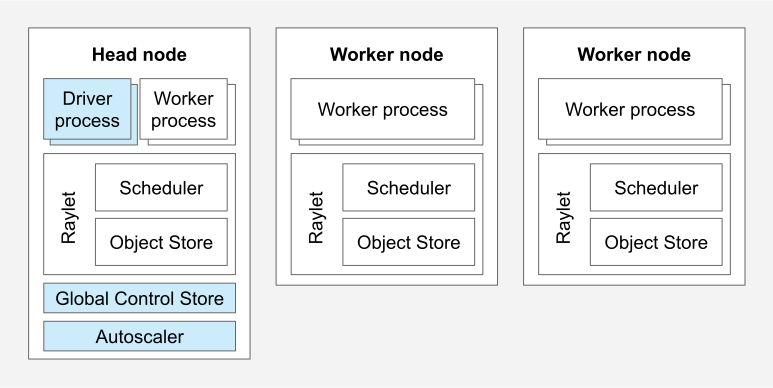 Reference: Ray
Ray Security
Ray allows any clients to run arbitrary code, so be careful about what is allowed to access your Ray cluster.
Read more about this here.
We will now configure vLLM to use the Ray cluster as its distributed executor backend. vLLM sends jobs to the Ray head node which then distributes the work across the cluster.
Starting a multi-node Ray cluster
#!/bin/bash
#SBATCH --job-name=vllm-serve
#SBATCH --nodes=2
#SBATCH --gpus=8
#SBATCH --time=4:00:00
#SBATCH --exclusive
#SBATCH --output=out/%x.%j.out

source .venv/bin/activate
export HF_HOME=/projects/public/brics/hf
export MODEL_PATH=$HF_HOME/hub/models--openai--gpt-oss-120b/snapshots/b5c939de8f754692c1647ca79fbf85e8c1e70f8a/
export YAML_CONFIG="/projects/public/brics/distributed_vllm/GPT-OSS_Hopper.yaml"
# Fix issue https://github.com/vllm-project/vllm/issues/22525#issuecomment-3172271363
export TIKTOKEN_ENCODINGS_BASE="/projects/public/brics/distributed_vllm/etc/encodings"
export TENSOR_PARALLELISM_SIZE=8
export SERVER_ADDRESS=$(dig +short ${HOSTNAME}-hsn0)
echo SERVING ON $HOSTNAME with TENSOR_PARALLELISM_SIZE=$TENSOR_PARALLELISM_SIZE

module load brics/nccl
module list

export VLLM_LOGGING_LEVEL=DEBUG
export VLLM_ALLREDUCE_USE_SYMM_MEM=0
export VLLM_USE_RAY_COMPILED_DAG=1
export VLLM_USE_RAY_SPMD_WORKER=1
export VLLM_USE_RAY_SPMD_HEAD=1

export HEAD_NODE=$(scontrol show hostnames $SLURM_NODELIST | head -n1)
export WORKER_NODES=$(scontrol show hostnames $SLURM_NODELIST | tail -n+2)
export HEAD_NODE_IP=$(dig +short ${HEAD_NODE})
export RAY_PORT=6378
export RAY_ADDRESS=$HEAD_NODE_IP:$RAY_PORT

# Start the vLLM server in the background
echo "Starting head node $HEAD_NODE..."
srun \
    --nodelist $HEAD_NODE \
    --nodes=1 \
    --gpus=4 \
    --cpus-per-task 72 \
    --ntasks-per-node 1 \
    bash -c "export VLLM_HOST_IP=$HEAD_NODE_IP; ray start --block --head --node-ip-address=$HEAD_NODE_IP --port=$RAY_PORT" &
sleep 20

echo "Starting worker nodes..."
for WORKER in $WORKER_NODES; do
    WORKER_IP=$(dig +short ${WORKER})
    echo "Starting worker node: $WORKER with IP $WORKER_IP"

    srun \
        --nodelist $WORKER \
        --nodes=1 \
        --gpus=4 \
        --cpus-per-task 72 \
        --ntasks-per-node 1 \
        bash -c "export VLLM_HOST_IP=$WORKER_IP; ray start --block --address=$HEAD_NODE_IP:$RAY_PORT --node-ip-address=$WORKER_IP" &
done
sleep 20

echo "Checking cluster status..."
srun \
    --overlap \
    --nodelist $HEAD_NODE \
    --nodes=1 \
    --gpus=4 \
    --ntasks-per-node 1 \
    ray status

wait
Click here to download the file: multi_node_serve.sh
This script does several things, which we will now break down:
- Requests exclusive use of two compute nodes on Isambard-AI.
- Activates our
uvvirtual environment containing vLLM and Ray. - Sets environments variables for vLLM and Ray.
- Loads the
brics/ncclmodule to enable NCCL over the Slingshot HSN. - Sets one of the two nodes to be the head node and the other to be the worker node - despite the terminology, the head node also acts as a worker by default with Ray.
- Starts the Ray head node.
- Starts the Ray worker node, connecting to the Ray cluster initialised by the head node.
- Checks the status of the Ray cluster, ensuring that it has been created successfully.
We can now spin up a Ray cluster.
$ sbatch multi_node_serve.sh
Submitted batch job JOB_ID
To find the head node of the Ray cluster:
$ squeue
  JOBID         USER PARTITION                     NAME ST TIME_LIMIT       TIME  TIME_LEFT NODES NODELIST(REASON)
2446866 user.project     workq               vllm-serve  R    4:00:00       0:16    3:59:44     2 nid[011265,011285]
In this case, the head node hostname is nid011265 and the job ID is 2446866.
We can verify that our Ray cluster was created successfully by examining the Slurm log file out/vllm-serve.JOB_ID.out. You should see two active nodes in the output from the ray status command, ran at the end of the multi_node_serve.sh script:
Checking cluster status...
======== Autoscaler status: 2026-02-24 08:04:03.547705 ========
Node status
---------------------------------------------------------------
Active:
 1 node_32769bb197cd085bf0cef7dbd30da9efb95b13a065da6b91a75f6e18
 1 node_7cae9434ee30d1fcb0aefdf27b18659ef9713160666974e5818e28a0
Pending:
 (no pending nodes)
Recent failures:
 (no failures)

Resources
---------------------------------------------------------------
Total Usage:
 0.0/576.0 CPU
 0.0/8.0 GPU
 0B/1.14TiB memory
 0B/372.53GiB object_store_memory

From request_resources:
 (none)
Pending Demands:
 (no resource demands)
Starting distributed vLLM on the Ray cluster
Now that our Ray cluster is ready, we can run begin serving distributed vLLM on the Ray cluster. In a multi-node environment, vLLM defers GPU-to-GPU communication, which is happening between separate physical nodes, to the distributed executor backend Ray which efficiently handles high-speed communication with Ray Direct Transport (RDT) via RDMA.
echo "STARTING VLLM SERVE ON RAY CLUSTER"

if [ $# -ne 2 ]; then
    echo "Usage: $0 <ray_jobid> <head_node>"
    echo "Example: $0 160852 nid001024"
    exit 1
fi

RAY_JOBID=$1
HEAD_NODE=$2

source .venv/bin/activate
export TIKTOKEN_ENCODINGS_BASE="/projects/public/brics/distributed_vllm/etc/encodings"
export HF_HOME=/projects/public/brics/hf
export MODEL_PATH=$HF_HOME/hub/models--openai--gpt-oss-120b/snapshots/b5c939de8f754692c1647ca79fbf85e8c1e70f8a/
export HEAD_NODE_IP=$(dig +short ${HEAD_NODE})
MODEL_NAME="openai/gpt-oss-120b"
YAML_CONFIG="/projects/public/brics/distributed_vllm/GPT-OSS_Hopper.yaml"

module load brics/nccl
module list

export CC=gcc
export CXX=g++
export NCCL_CROSS_NIC=1
export NCCL_FORCE_FLUSH=0
export VLLM_LOGGING_LEVEL=DEBUG
export VLLM_ALLREDUCE_USE_SYMM_MEM=0
export VLLM_USE_RAY_COMPILED_DAG=1
export VLLM_USE_RAY_SPMD_WORKER=1
export VLLM_USE_RAY_SPMD_HEAD=1

srun \
    --overlap \
    --jobid=${RAY_JOBID} \
    --nodelist=${HEAD_NODE} \
    --nodes=1 \
    --gpus=4 \
    --ntasks-per-node=1 \
    bash -c "VLLM_HOST_IP=$HEAD_NODE_IP vllm serve \
    $MODEL_PATH \
    --served-model-name $MODEL_NAME \
    --distributed-executor-backend ray \
    --port 8000 \
    --max-num-seqs 512 \
    --config $YAML_CONFIG \
    --tensor_parallel_size=8"
Click here to download the file: start_serve.sh
This script is similar to the single_node_serve.sh script, with a few key differences:
- We point vLLM at the IP address of the head node of our vLLM+Ray cluster.
- We use
srun --overlapto run the command within the head node, rather than in a separate node. - We tell vLLM to use Ray as the distributed executor backend.
We can run this script using the job ID and head node hostname that we found after creating our Ray cluster.
$ bash start_serve.sh JOB_ID HEAD_NODE_HOSTNAME
This will take several minutes. The vLLM process will hook into the Ray cluster, communicate with all available devices (GPUs) and begin to load the GPT-OSS-120B weight shards onto each device.
Stuck on 'waiting for proc(s) to start'
If your vLLM output does not progress past Waiting for 1 local, 0 remote core engine proc(s) to start., cancel the process with CTRL+C and run the serve command again.
Benchmarking a multi-node server
When the model has been loaded and vLLM has begun serving the model, we can run a benchmark on our multi-node cluster. As in the single node case, we need to edit the vllm_bench.sh script to set SERVER_ADDRESS to the head node hostname. This is the hostname used to start vLLM with the start_serve.sh script above.
$ sbatch vllm_bench.sh
The results of this benchmark are logged to the out/vllm-bench.JOB_ID.out file. It will take a few minutes before you begin seeing the results of the benchmark, but when it has concluded you should see results like this:
BENCHMARKING ON HOST_NAME AGAINST SERVER AT IP_ADDRESS
.
.
.
Starting initial single prompt test run...
Skipping endpoint ready check.
Starting main benchmark run...
Traffic request rate: inf
Burstiness factor: 1.0 (Poisson process)
Maximum request concurrency: 512
100%|██████████| 2560/2560 [04:09<00:00, 10.25it/s]
tip: install termplotlib and gnuplot to plot the metrics
============ Serving Benchmark Result ============
Successful requests:                     2560
Failed requests:                         0
Maximum request concurrency:             512
Benchmark duration (s):                  249.80
Total input tokens:                      2621440
Total generated tokens:                  2621440
Request throughput (req/s):              10.25
Output token throughput (tok/s):         10494.29
Peak output token throughput (tok/s):    13824.00
Peak concurrent requests:                575.00
Total token throughput (tok/s):          20988.58
---------------Time to First Token----------------
Mean TTFT (ms):                          1746.83
Median TTFT (ms):                        338.62
P99 TTFT (ms):                           12517.54
-----Time per Output Token (excl. 1st token)------
Mean TPOT (ms):                          46.94
Median TPOT (ms):                        46.44
P99 TPOT (ms):                           51.40
---------------Inter-token Latency----------------
Mean ITL (ms):                           46.94
Median ITL (ms):                         37.97
P99 ITL (ms):                            170.94
==================================================
Compare the total token throughput and mean time to first token with single node server. How do they compare? It is important to note that GPT-OSS-120B can fit on one Hopper GPU so distributing it across multiple GPUs and nodes may not improve inference performance. This reduction in performance is caused by the latency overhead added by inter-node communication and tensor parallelism, or insufficient batch size could be causing reduced GPU utilisation.
Tensor Parallelism vs. Pipeline Parallelism
We can attempt to improve these multi-node benchmark results by testing and comparing different parallelism strategies - specifically tensor and pipeline parallelism.
What is the performance delta, in total token throughput (tok/s) and time to first token, between these two strategies?
To use pipeline parallelism instead, change the tensor_parallel_size argument to pipeline_parallel_size, run the benchmark again and then you can compare the performance of both approaches. You can also use both strategies simultaneously; note that when no other parallelism strategies are used, tensor_parallel_size and pipeline_parallel_size must multiply to equal the total number of GPUs available in your job.
4. Conclusion
In this tutorial, you've learned how to serve an LLM, OpenAI's largest open weights model, GPT-OSS-120B, across multiple GPUs and nodes on Isambard-AI. We covered the technical challenges surrounding the serving of frontier models, the strategies for distributing such a model across multiple hosts, and how vLLM and Ray in tandem can enable distributed inference in an accessible way.
After learning about the context to distributed LLM serving, we then ran OpenAI's latest flagship open weights model GPT-OSS-120B on both single node and multi-node clusters. In the single node case, we ran GPT-OSS-120B across all four Hopper GPUs using tensor parallelism across each GPU. In the multi-node case, we ran the model across eight Hopper GPUs over two nodes using tensor parallelism across each GPU. In both cases, we ran a benchmark to test the throughput of the model, in tokens per second.
The high-speed Slingshot interconnect, and the RDMA capabilities provided by NCCL, allow performant distributed model serving across multiple GPUs and nodes on Isambard-AI, as described in our distributed PyTorch training tutorial.
Note: Containers
All the above is applicable for containers given you follow the multi-node container documentation.