Getting Support
If you are having issues with accessing the BriCS facilities or running jobs please first use the search bar at the top of the page to check whether your issue is covered by our User Documentation. Please also consult the Known Issues and FAQs sections.
If you still need help, then please submit a support ticket. We do not provide support via email; all requests for support should be submitted via the helpdesk.
Writing a Good Ticket
To help the BriCS team resolve your issue as quickly as possible, please write your ticket yourself, in your own words. Describe:
- What you were trying to do
- What you expected to happen
- What actually happened
Include the exact command(s) run and error message or output.
Please raise a separate ticket for each distinct issue. Tickets that bundle several unrelated problems together take longer to triage and resolve.
Please do not submit AI-generated tickets
Tickets written or expanded by an AI assistant are often very long, and can include speculative diagnoses, suggestions, or assumptions that have not been checked against this documentation or your own testing. This makes it harder for the BriCS team to identify the true root cause of your issue, which slows down resolution.
If you have used an AI assistant to investigate your problem, please summarise the outcome in your own words rather than pasting its full output.
Information to include
Please include the following information alongside your description.
- The name of the project you are working in (visible in the BriCS portal)
- The BriCS facility or service where you encountered the problem (e.g. Isambard-AI, Isambard 3, BriCS portal, BriCS helpdesk)
- If relevant, your UNIX username for the project (of the form
<USER>.<PROJECT>, e.g.grace.cobol) - Full diagnostic information, including tracebacks or stack traces — this helps the service desk identify where the code failed, rather than relying only on messages like "Segmentation fault"
Ticket update notifications
Users may opt in to receive email notifications when their tickets are updated. This option is available when creating a ticket or posting a reply at https://support.isambard.ac.uk/.
Please note that tickets cannot be updated by replying to this automated email.
GW4 Access
GW4 users wanting access to Isambard 3 should check via their University support desk for site-specific information and processes.
University closure days
Please note the University of Bristol operates university closure days which are usually adjacent to public (bank) holidays. Details are available at this link.
Submitting a Support Ticket
- In a web browser, go to the BriCS helpdesk (https://support.isambard.ac.uk)
-
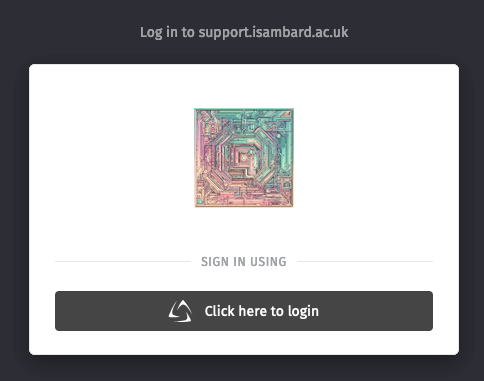
If you are not already signed in, you will be presented with a BriCS login page where you will be able to perform federated login using your institutional identity:
- Select the "Click here to login" button.
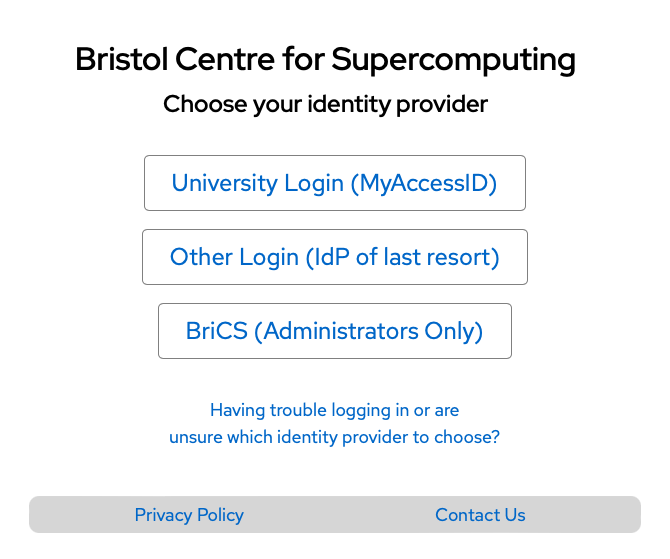
- Select "University Login (MyAccessID)" as your identity provider
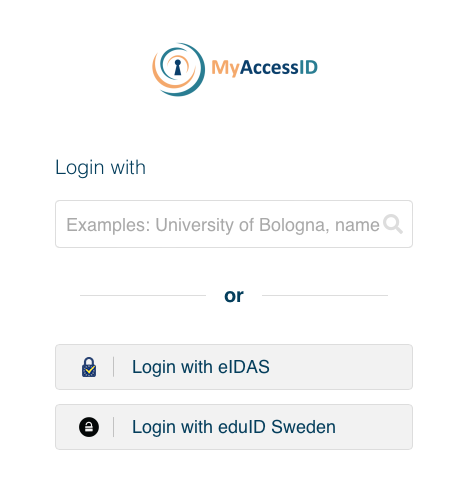
- If you are taken to a MyAccessID page, select your institution and follow any instructions provided by MyAccessID.
- If you are presented with a institutional sign-on page, authenticate with your institutional credentials as normal.
On successful sign in you will see the helpdesk.
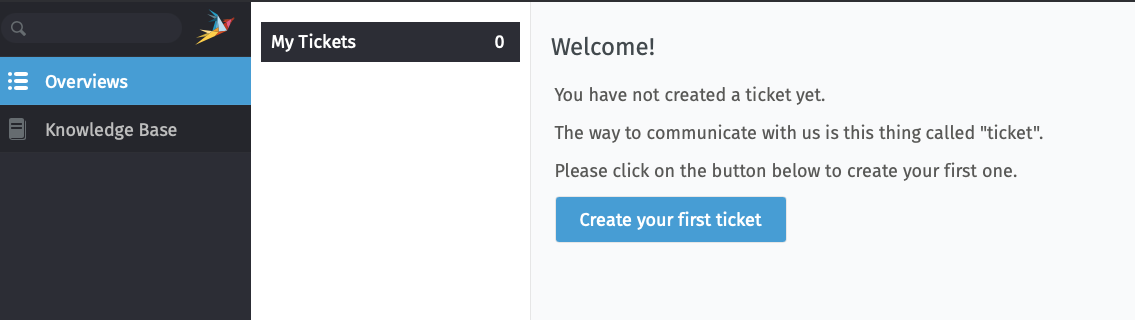
You can submit a new ticket as follows:
-
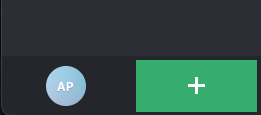
At the bottom of the black sidebar on the left, there is a green plus symbol. Press the "plus" to create a new ticket.
-
You will be presented with a "New Ticket" form, where you can enter a title and text for your enquiry. You can also add an attachment if helpful (e.g. a screenshot of your issue, .txt file of your terminal session). There is also a dropdown menu for "State" which should be left set on "new".
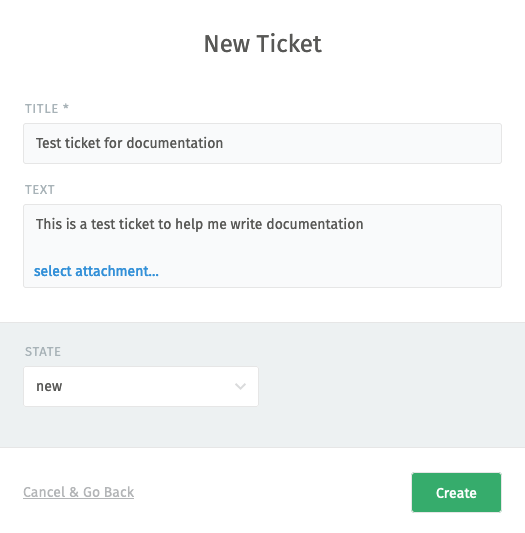
- Once you've entered all the information press "Create".
- Your ticket will appear in the left black sidebar and in the "Overviews" section.
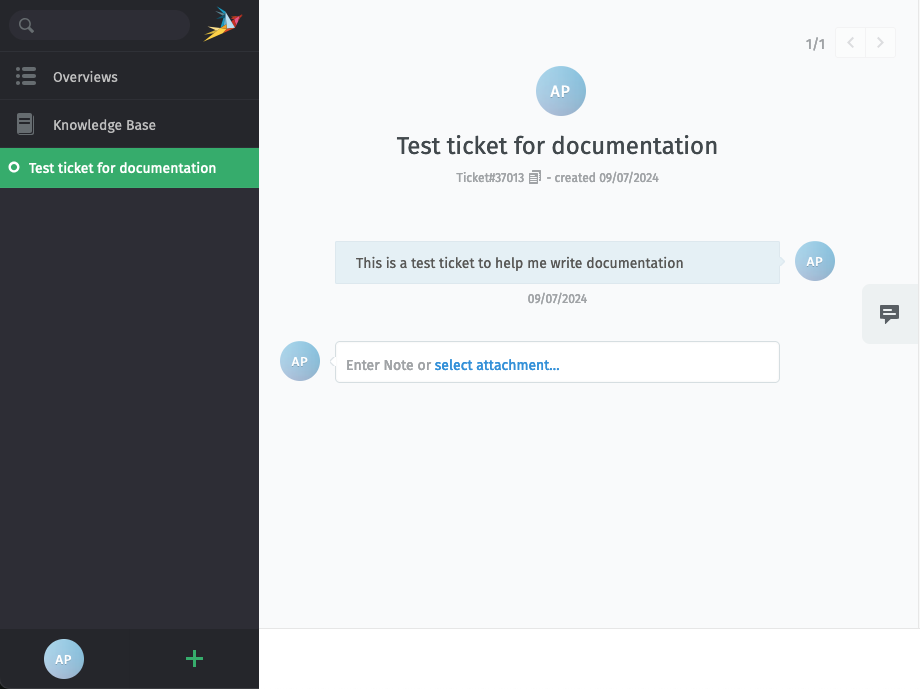
A member of the Isambard team will respond to your ticket (within normal working hours).
The interface for the ticket system is a web chat. Please feel free to add additional information or context to your ticket at any time through the web chat interface.
Once your issue has been resolved, please close the ticket using the dropdown "State" menu.
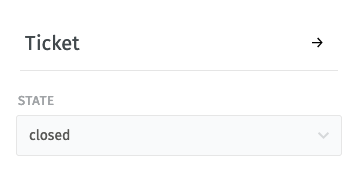
After your ticket has been closed, you can still reply to it for 48 hours. After this, a warning will appear directing you to open a new ticket.

Further information
The BriCS helpdesk is built using Zammad. The Zammad user documentation provides general information on using Zammad. Please note that this user guide is primarily aimed at service agents/operators and so may not be relevant to BriCS helpdesk users.