Managing awards and projects
If you are a Project Lead (formally called a Principal Investigator) for a BriCS project, you can manage (add and remove) users in your project. Where you do this depends on how your BriCS project was created.
Your project was created from an award from, e.g. AIRRPortal
Most projects are created from awards allocated by an Awards Portal (e.g. AIRRPortal or the Allocate Portal).
If this is the case, then you can only manage users in your project from the appropriate Awards Portal. If you try to do this on the BriCS Portal, you will see a popup with a link that will take you to the appropriate Awards Portal.
Your project was created directly on the BriCS portal
Some projects are created directly on the BriCS Portal. In these cases, the Project Lead can manage team members directly on the BriCS portal.
Project membership management
In either case, the Project Lead can manage project membership in the appropriate portal.
Project membership management is the responsibility of the Project Lead
Every project and/or award is assigned a single Project Lead (formally called a PI). The Project Lead is the owner of the project and is responsible for managing users allocated to that project. See Project Policies for information on project policies.
This guide is aimed at Project Leads and describes how to perform common user management tasks in the BriCS portal or Awards Portals.
Note that there should only be a single Project Lead per project. If you need to change the Project Lead role to another project member, then please get in touch with your allocator.
Not a Project Lead?
A Project Lead should already have invited you to join an award or project and this should be visible to you in the portal. If you would like to be added to or removed from an award or project, please contact your Project Lead directly.
Inviting someone to your award or project
There are three roles you can have on a project:
- Researcher - access to the resource available to the award or project, and able to query usage.
- Project Co-Lead - (formerly called Project Co-investigator) also able to access the resource and to query usage.
- Project Lead - (formerly called Principal Investigator) all of the above, and can manage membership of the project and/or award.
The Project Lead is a special role that should be held only by the single person who is legally responsible for the project.
Warning
There should only be a single Project Lead per award or project. Project or awards with multiple Project Leads will be asked to demote any extra Leads to Project Co-Lead status. You need to contact your allocator if you want to change the identity of the Project Lead. This is because the Project Lead holds legal responsibility for the operation of the award or project.
The Project Lead will have to accept specific Terms and Conditions (provided separately) that relate to their use of the award and/or project and their obligations to the Bristol Centre for Supercomputing and its funders.
Because of this, ONLY the Project Lead can add people to their award or project.
In doing so, the Project Lead confirms that they have conducted the required due diligence on the person they are adding, and that they are happy to take responsibility for the actions of that person.
To invite someone to your project, in a web browser, go to either:
- The BriCS Portal if this is a directly created project, or
- The appropriate Awards Portal if this project was created from an award.
In either case, once logged in, go to the appropriate Project or Award page for your award or project, e.g.
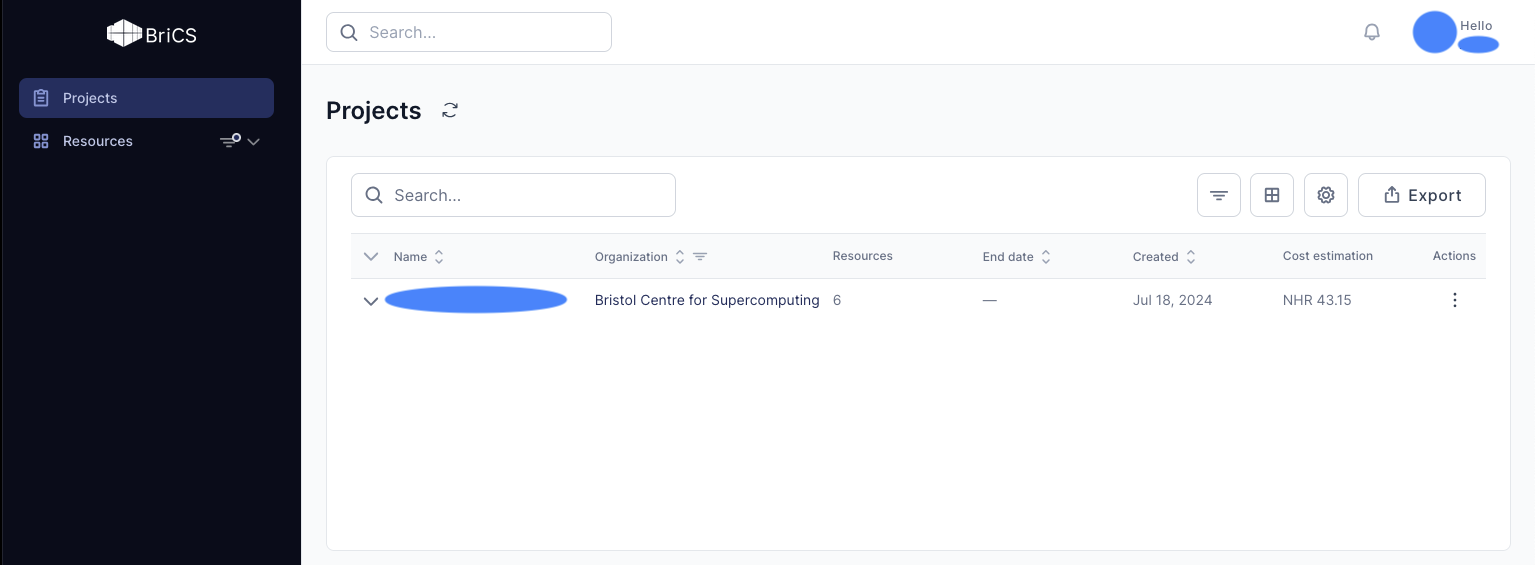
Click on the award or project that you want to invite someone to. This will take you to its management page. Click "Team" in the menu bar, and then the "Invitations" tab to go to the invitations page.
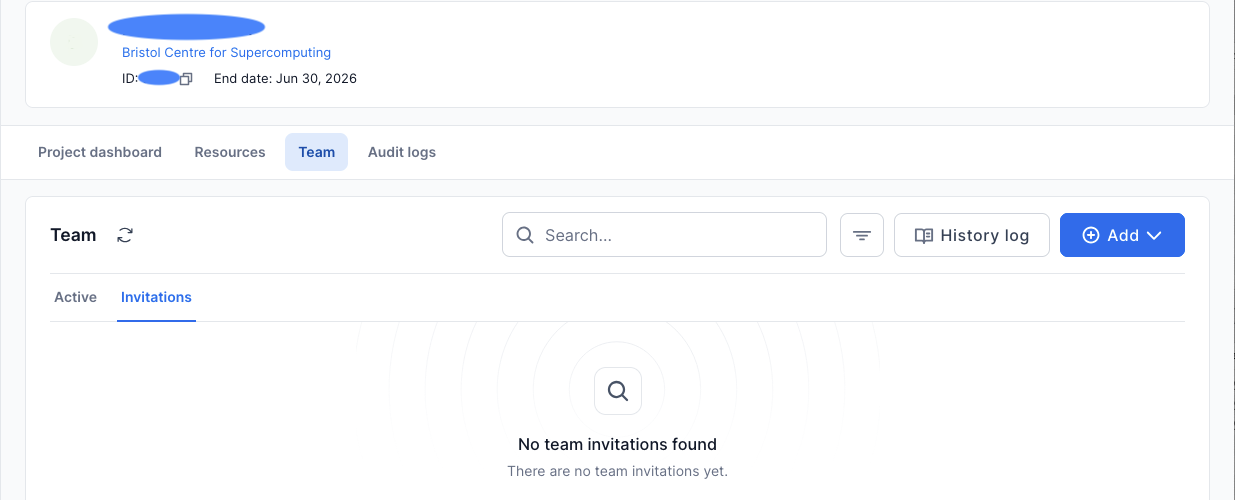
Click the "Add" and then "Invite by mail" button to open the invitation dialog.
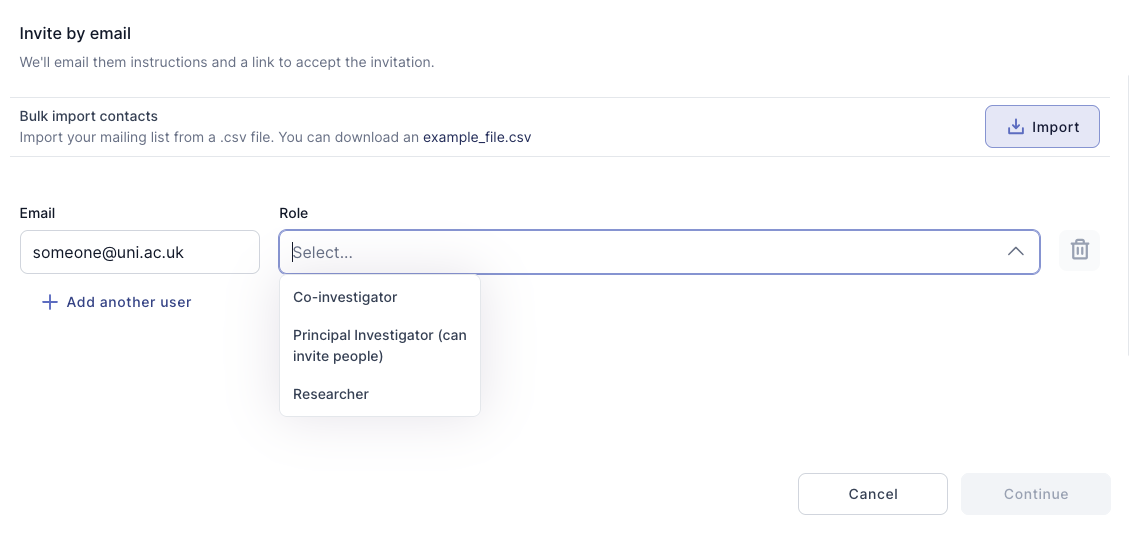
Type in the email address of the person you want to invite. Then choose the role you want to give them.
Warning
In most cases, you can only invite people to your award or project if their email matches a list of approved email domains. This list is controlled by your allocator, and is set based on the email domains of the people who were named on the original award application. You will need to email your allocator via the link provided in the invitation dialog if you want to ask them if you can invite people from another email domain. Note that normally only professional emails are allowed (e.g. those from an employer or institution). Personal email addresses are only approved in exceptional circumstances.
Inviting another Project Lead
Each award and/or project can only have a single Project Lead. We will demote extra Project Leads to Project Co-Lead status if they are created. You must email your allocator if you want to ask to change the identity of the Project Lead. This is because the Project Lead is legally responsible for the operation of the award and/or project.
Adding someone as a second Project Lead is not a valid way to delegate your ability to invite people. Only the Project Lead can invite people to an award or project, and this responsibility cannot be delegated to a Project Co-Lead or shared by having multiple Project Leads.
Which e-mail address to use?
Strong compliance rules mean that invitations to personal email addresses (e.g. Gmail, Yahoo, Outlook) are not allowed. The Access Terms are accepted on behalf of the employer of all project team members. This requires that invitations are sent to an institutional or professional email address, so there is a link to the employer. Note, as above, that only email addresses that match the approved domains for the award and/or project are allowed.
Make sure you use the correct email address for the person you are inviting. Please use their institutional or professional email address. Please contact your allocator if you want to invite someone who does not have a professional email address. They will discuss with you if this is possible and how to proceed.
Click "Continue" to move to the next page. Here you can add a custom message that will be appended to the invitation.
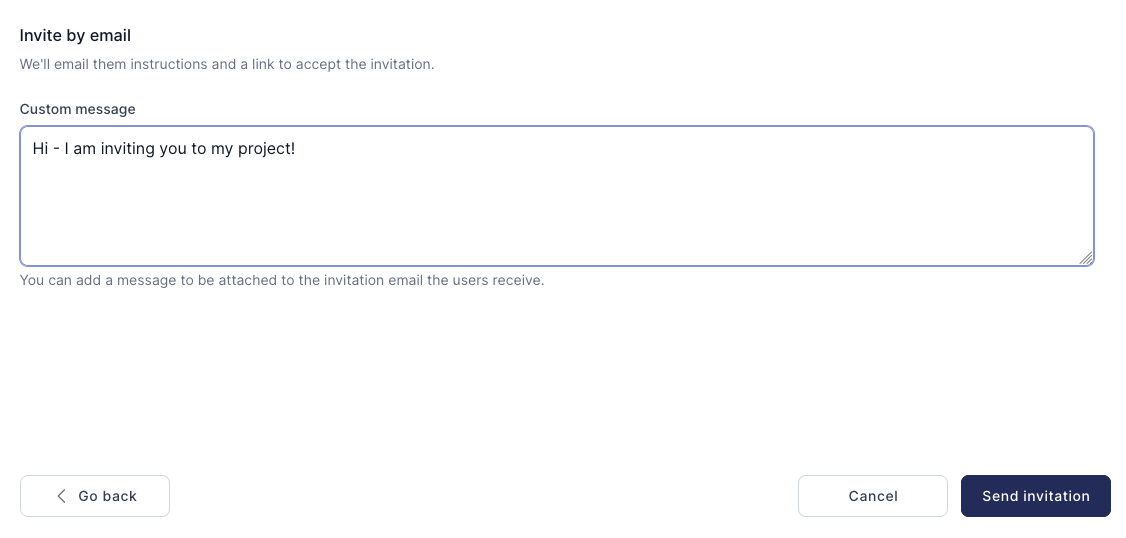
Once ready, click the "Send invitation" button to send the invitation. This will be emailed to the person you are inviting.
You will be taken back to the invitations page. Here you will see all of the invitations you have sent, and their status. The status will show as "Pending" prior to the user accepting the invitation and will show as "Accepted" once the invitation has been accepted.
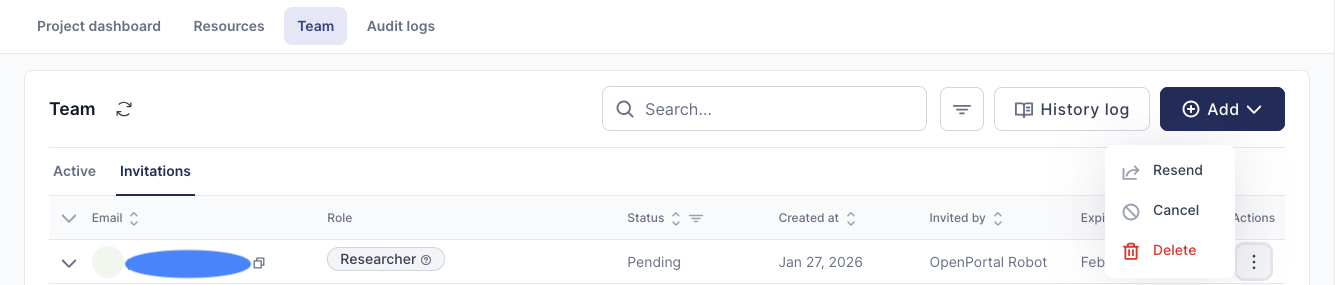
You can cancel an invitation in the "Actions" menu by clicking "Cancel", or resend the email by clicking "Resend".
Invitation expiry
An invitation is only valid for 30 days. You can see the date it expires under the "Expires at" column.
Removing someone from your award or project
If you need to remove someone from your award or project, go to the award or project page and click on "Team" in the menu bar, then the "Active" tab.
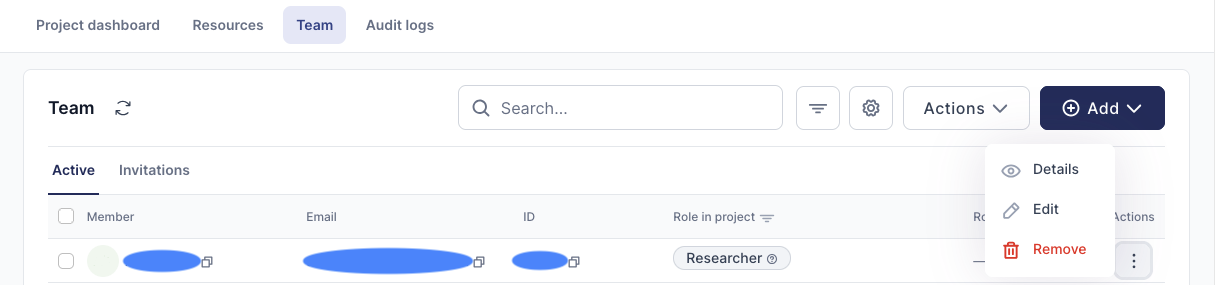
Under the "Actions" menu, click "Edit" if you want to edit the user (e.g. to change their role, or to set a date at which they will be automatically removed).
Click "Remove" if you want to remove the user from the award or project.
This will immediately prevent the user from creating new logins or new connections. However, they may still have existing connections that will remain active until they expire.
Please raise a ticket in the helpdesk if you want to urgently remove someone from your project. We will block that user from all services immediately.
Project membership is required to access the portal
People can only log into the portal if they are invited to or active in at least one project. If you remove someone from all of their projects, then they will not be able to log in.
Data retention for after removing a user
The data associated with a user will be retained as described in the Data Privacy Policy for a period of time to satisfy cybersecurity and compliance requirements, after which it will be deleted.
The Project Lead is responsible for managing data in project storage
Project data is managed and is the responsibility of the Project Lead. Removing a user from a project will NOT remove their data from the shared project storage.
Further information
The BriCS portal and the Award Portals are built using the Waldur platform. The user guide for Waldur provides general information about using the Waldur platform. Please note that information in this user guide is generic and may not apply to the BriCS portal.
Having issues?
If you are having issues adding or removing a colleague to your award or project please get in touch using the BriCS helpdesk:
-
Opening support tickets on the helpdesk.