Getting Started
This is a guide for anyone who has been added to a project on the BriCS Portal.
Waiting for your award to become active
If your project was created from an award (see Awards Portals), you cannot connect to any BriCS systems until your award has been activated. Log into the appropriate Awards Portal and find your award.
While your award is pending, you will see a "Pending" badge and a message saying that the allocated resource is not yet ready. This can take up to 5 working days. You cannot connect to BriCS systems yet — please wait until your award becomes active.
The 5 working days starts when any embargo is lifted, not from your project start date
Some allocators place an embargo on a newly awarded project, so that they have time to complete due diligence and compliance checks. An embargo can last much longer than 5 working days. The 5 working day setup period only begins once the allocator has lifted the embargo, not from your project's start date.
Concerned about a delay?
If you are not the Project Lead, you can still log into the appropriate Awards Portal to check whether your award has moved from "Pending" to "Active". If you think things are taking too long, please contact your Project Lead in the first instance. The Project Lead can follow this up directly with the allocator if needed. Please do not contact BriCS support about award activation delays — this is managed by the allocator, not BriCS.
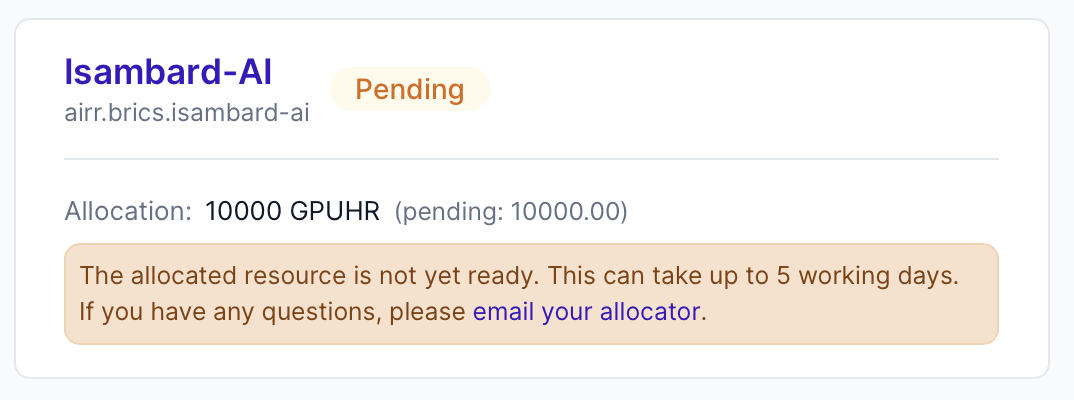
Once your award is ready, it will show an "Active" badge, and your project will have been created on the BriCS Portal. Click the "Go to project" button to go directly to your project on the BriCS Portal.
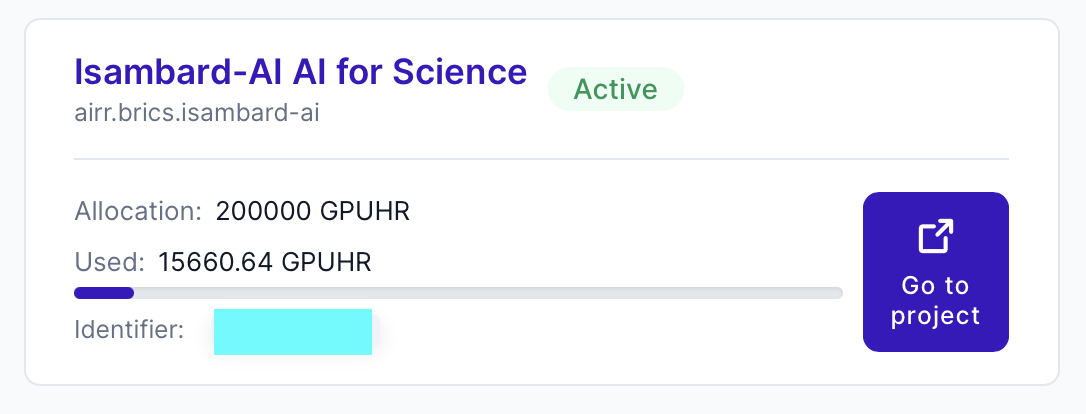
Once you can see your project on the BriCS Portal, continue with Setup below to log in for the first time.
-
First time login through the portal.
-
Logging into BriCS supercomputers with SSH and
clifton. -
How Isambard works and key concepts for new users.
-
How the BriCS Portal and Awards Portals relate to each other.
-
Manage membership of your award or project (Project Leads only).
-
Opening support tickets on the helpdesk.
Software installation model
AI/ML workflows are diverse and change rapidly. Different projects need different versions and bespoke combinations of PyTorch, CUDA, Python and many other packages, and as such, centrally managing this would be complex and slow.
Instead, projects need to install and manage their own software environments using tools such as:
- Containers — bundle your exact software stack for full reproducibility
- Conda/Python — manage Python environments and packages
- Spack — build HPC software from source
- E4S — a curated set of HPC software packages
This gives you full control over your software stack. The documentation, backed by our support channels, offers a range of guides, tutorials and other information to help you. If you would like to contribute to the documentation, please raise a support ticket in the first instance.