Accounting
All usage on the Isambard supercomputers is measured and accounted for using "node hours" (or NHR). A node hour is as it sounds, namely a job that consumes one whole node for one whole hour is said to have used 1 node hour (1 NHR).
So, for example, if a job uses 5 whole nodes for 10 hours, it will be measured as having used 50 NHR.
Or, if a job consumes half a node for 3 hours, it will be measured as having used 1.5 NHR.
For the Isambard supercomputers, we also define a "minimum allocatable unit" to reflect how the platforms are operated. For example, the minimum allocatable unit for Isambard-AI Phase 1 is 1 GPU.
What is a node hour?
The nodes on Isambard 3 and Isambard-AI are different, and so the amount of compute power available per node hour is different.
Isambard-AI
Each node on Isambard-AI has 4 GH200 superchips, each with 1 H100 Nvidia GPU, 1 72-core Grace CPU and 216 GB of memory.
1 node is therefore equivalent to 4 GPUs, 288 CPU cores and 864 GB of memory.
If a job consumed 1 GPU / 72 CPU cores / 216 GB of memory for 1 hour, then it will have used 1/4 of the node, and so consumed 0.25 NHR.
GPU hours (GPUHR) and Node Hours (NHR) are different
Each Isambard-AI node has 4 GPUs, so 1 NHR = 4 GPUHR. Some allocating bodies (such as UKRI/DBIST) award compute in GPUHR, so an award of 10,000 GPUHR in AIRRPortal would appear in the BriCS Portal as 2,500 NHR.
Tip
We calculate the fraction of the node used based on the maximum of the GPU / CPU / memory used. So a job that uses 1 CPU core and 1 GPU would be measured as using a quarter of the node, as it is consuming a quarter of the GPUs. However, a job that uses 2 GPUs and 288 CPU cores would be measured as using a whole node, as it is consuming all of the CPU cores (despite only using half of the GPUs).
Isambard 3
Each node on Isambard 3 has 2 72-core Grace CPUs, no GPUs and 240 GB of memory.
If a job consumed 72 CPU cores and 120 GB of memory for 1 hour, then it will have used 1/2 a node, and so consumed 0.5 NHR.
Tip
We calculate the fraction of the node used based on the maximum of the CPU / memory used. So a job that uses 72 CPU cores and 120 GB of memory would be measured as using a half of the node, as it is consuming half of the CPU cores and memory. Similarly, a job that uses 36 CPU cores and 240 GB of memory would be measured as using a whole node, as it is consuming all of the memory (despite only using a quarter of the CPU cores).
What are the minimum allocatable units?
There is a difference between what you request for a job, and what is allocated on the cluster. The accounting system measures what is actually allocated, not what is requested.
Isambard-AI
Allocations on Isambard-AI are in units of GPUs. So a minimum allocation requires at least 1 GPU, i.e. at least 1/4 of the node. You can request different numbers of CPUs, but the job will always be allocated at least 1 GPU, and so will consume at least 1/4 of the node (0.25 NHR per wall-clock hour).
Isambard 3
Allocations on Isambard 3 are in units of CPU cores. So a minimum allocation requires at least 1 CPU, i.e. at least 1/144 of the node for Grace.
Units of time
Time is accounted for and rounded to the nearest second.
This means that a 5 second job on 100 nodes would use 100 x 5/3600 = 0.14 NHR.
How can I see how many node hours are available to my project?
The total number of node hours consumed on a project are visible in the Awards Portal.
Simply navigate to your project and look for the card that shows the accounting information in the Awards Portal dashboard. The card shows how many resources the project has used so far out of the total allocated.

For example, this card shows that this project used 1,086.67 GPUHR from the 10,000 GPUHR allocated to the project.
How can I see who has consumed what?
You can see who has consumed what on a project by navigating to the "Usage Report" tab of the Awards Portal. It will look something like this.
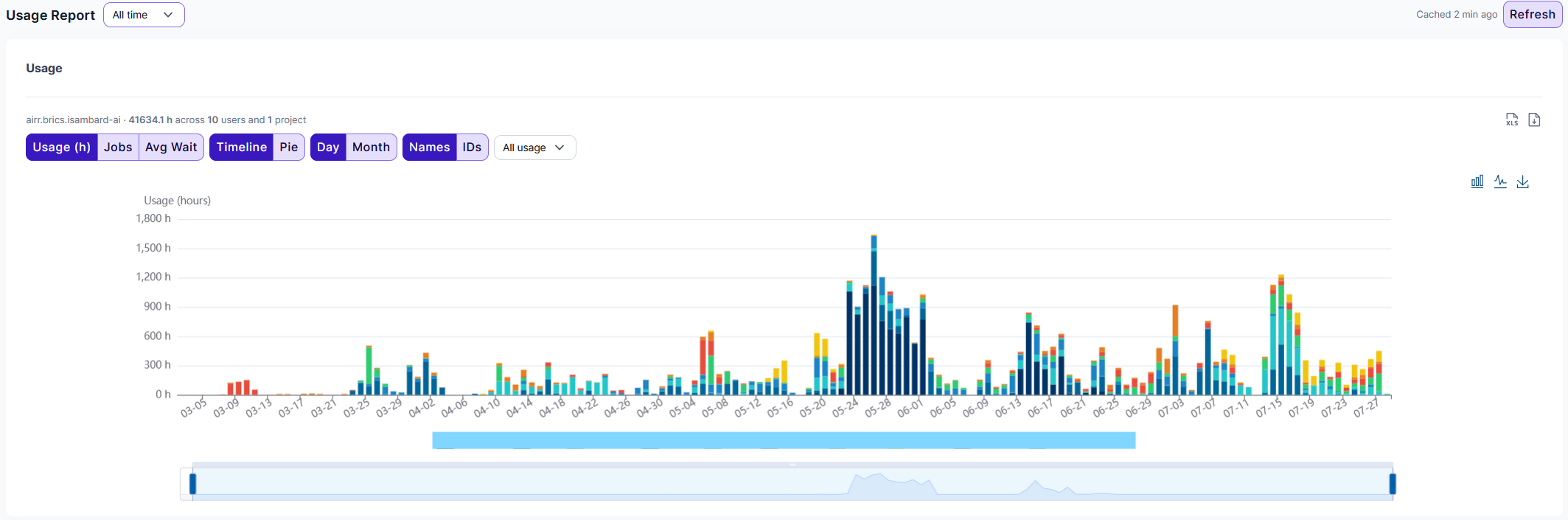
Each colour represents consumption from a different user, as shown in the legend below the graph (redacted here for privacy).
The tab also lets you select usage by month. The icons on the right of the tab let you download the underlying accounting data in Excel or JSON, or download the graph itself.
The graph breaks down usage per day. In this case, the project started in March. Hovering over the graph will show a pop-up that breaks down that day's usage across the individual project members.

What happens if I run out of node hours?
Jobs on a project will only run if there are enough node hour credits available to let that job run to completion. Put simply, if you don't have enough NHR credits remaining, then your job will not start.
Tip
Jobs are never stopped because a project has run out of NHR credits, even if that means that your NHR credit balance would go negative. Jobs would be allowed to complete - but no new jobs would be allowed to start.
If you obtain more NHR credits, e.g. because of a successful application to an access call, or because you receive a new tranche as part of a monthly allocation, then your NHR credit balance will become positive, and your jobs would be allowed to start again.
Are there any requirements on how I spend my node hours?
The Isambard clusters have a fixed capacity, and are shared between all projects and users. Node hours are awarded to a project on the expectation that they are used evenly throughout a project.
If the members of a number of projects hoard their node hours, and then all then try to use them before their projects expire, then the cluster will be overloaded. This will lead to long queue times, and it is likely that many of the jobs submitted will fail to start before the project ends.
It is the responsibility of project members to ensure that node hours are consumed well before their project ends. Any node hours remaining at the end of a project will be lost.
Tip
Some allocations may come with node hour consumption requirements that enforce a minimum usage per month or quarter. In these cases, any node hours that fall outside the minimum usage will be lost.
Tip
Project PIs should also ensure that node hours are consumed and all data related to a project is copied back to the user's own storage before the project ends. Data is only retained on the cluster while the project is active.
Who can spend node hours from my project?
Only members of a project can run jobs that consume node hours on a project. However, all members of a project have the power to submit jobs that consume node hours. There is no mechanism to control which project members can submit jobs, nor to limit how many node hours individual projects members can consume.
How can I stop someone consuming node hours on my project?
Only members of your project can run jobs that consume node hours. To stop a member of your project from consuming, simply remove them from your project. Their data will be retained on the cluster - data is only deleted when the project itself ends.
You can easily add the project member back into the project when you want to let them consume again. Adding and removing project members is quick and easy.
Tip
Removing a member from your project will stop them from accessing the cluster and running new jobs, but it won't stop any existing jobs that they may already have running. Please submit a ticket asking for their jobs to be killed if you want to completely stop their charges.
Warning
Only Project PIs have the ability to add and remove members to a project
What if I don't recognise or want to query a charge?
You can query a charge by submitting a ticket, giving information about your project, and the specific charge you are querying. Note that only a Project PI or Co-I is allowed to query a charge.